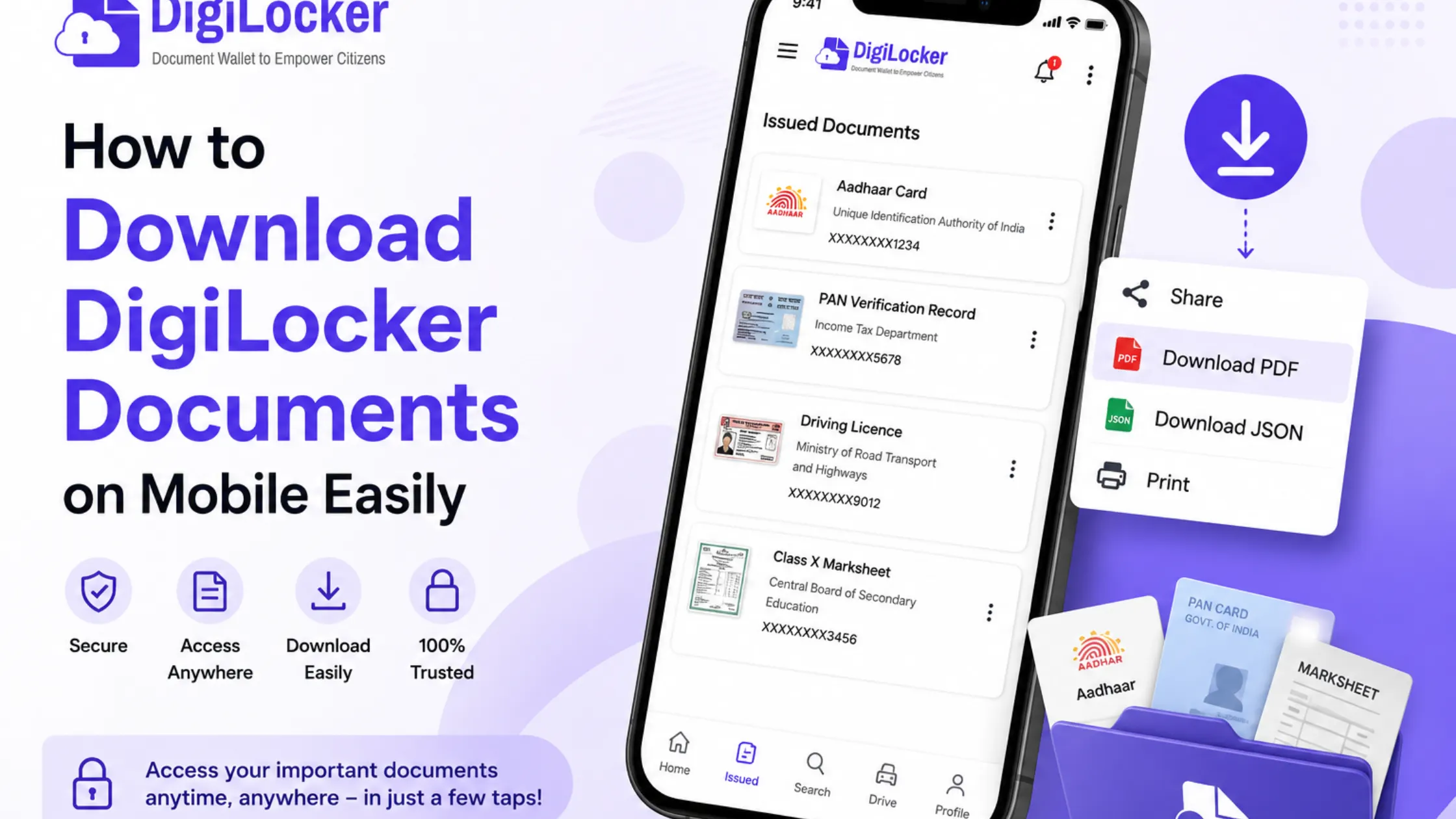
DigiLocker has made it much easier for people in India to access important documents digitally. Instead of carrying physical copies everywhere, you can store and use documents like your Aadhaar card, driving licence, PAN card, vehicle registration certificate, and educational certificates directly from your phone.
However, many users still get confused about downloading documents from the DigiLocker app. Sometimes they cannot find the download option, while others face issues with login or document retrieval.
In this guide, you will learn how to download DigiLocker documents on mobile step by step. Whether you use an Android phone or an iPhone, this beginner-friendly guide will help you access and save your documents easily.
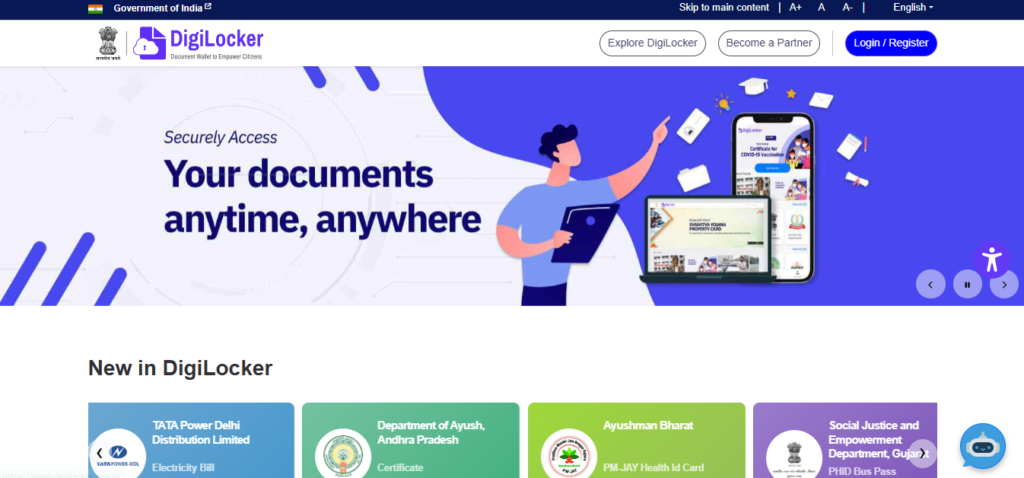
What Is DigiLocker?
DigiLocker is a digital document wallet launched by the Government of India. It allows citizens to store and access official documents online.
You can use DigiLocker to:
- Store government-issued documents
- Download verified certificates
- Share documents digitally
- Access documents anytime from your mobile
Many government departments and educational institutions now issue documents directly through DigiLocker.
Why Download DigiLocker Documents on Mobile?
Downloading documents on your mobile can be useful in many situations.
For example:
- Showing your driving licence during traffic checks
- Sharing educational certificates during job applications
- Keeping offline access when internet is unavailable
- Saving important documents as backup copies
Having downloaded copies can save time and reduce stress during emergencies.
Documents You Can Download from DigiLocker
Here are some commonly available documents in DigiLocker:
| Document Type | Issuing Authority |
|---|---|
| Aadhaar Card | UIDAI |
| Driving Licence | Transport Department |
| Vehicle RC | Ministry of Road Transport |
| PAN Card | Income Tax Department |
| Academic Certificates | Universities & Boards |
| Insurance Documents | Insurance Providers |
Keep in mind that document availability depends on whether the issuing authority supports DigiLocker.
Requirements Before Downloading DigiLocker Documents
Before you start, make sure you have:
- A smartphone with internet connection
- DigiLocker app installed
- Registered mobile number linked with DigiLocker
- Login credentials or OTP access
- Documents already issued or linked to your account
If you do not have the app, download it from the official app store.
How to Download DigiLocker Documents on Mobile
If you are wondering how to download DigiLocker documents on mobile, follow these simple steps.
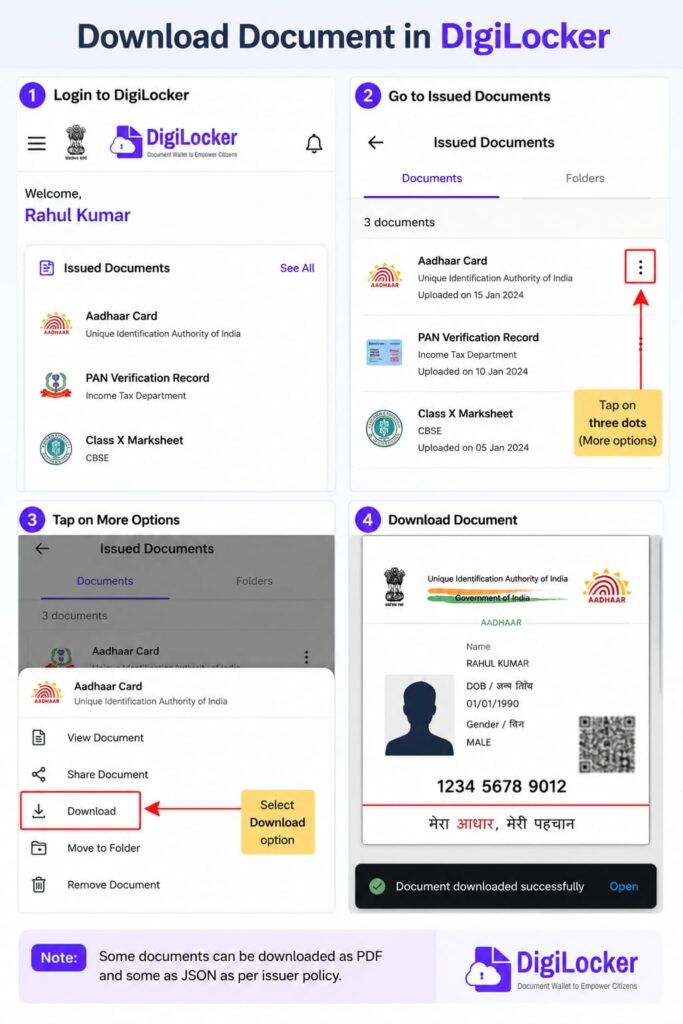
Step 1: Open the DigiLocker App
Launch the DigiLocker app on your smartphone.
If you do not have it installed:
- Open Google Play Store or Apple App Store.
- Search for “DigiLocker.”
- Install the official application.
Step 2: Log In to Your Account
You can log in using:
- Mobile number
- Aadhaar-linked mobile number
- Username and password
Enter the OTP sent to your registered mobile number.
After successful login, you will reach the dashboard.
Step 3: Go to “Issued Documents”
On the home screen, look for:
- Issued Documents
- Issued by Issuers
- Documents Section
Tap on it to view all available digital documents.
These documents are digitally verified and accepted by many authorities.
Step 4: Select the Document You Want to Download
Browse through your documents and choose the one you need.
Examples:
- Driving Licence
- PAN Card
- Vehicle RC
- Marksheet
- Insurance Certificate
Tap the document to open it.
Step 5: Find the Download Option
After opening the document:
- Look for the Download icon or button.
- Tap on it.
- The file usually downloads in PDF format.
Depending on your phone settings, the file may be saved in:
- Downloads folder
- Documents folder
- DigiLocker folder
Step 6: Access the Downloaded File
Open your phone’s file manager and navigate to:
Internal Storage → Downloads
You should find the downloaded PDF document there.
You can now:
- View the file offline
- Share it via email or messaging apps
- Print it if needed
How to Download DigiLocker Documents on Android
Android users generally have direct access to downloaded files.
Steps:
- Open DigiLocker app.
- Login to your account.
- Open Issued Documents.
- Select the document.
- Tap Download.
- Check the Downloads folder.
Most Android phones automatically save PDFs in the Downloads directory.
How to Download DigiLocker Documents on iPhone
The process is almost similar for iPhone users.
After downloading:
- Open the Files app.
- Go to Downloads or iCloud Drive.
- Locate your document.
If the file does not appear immediately, refresh the Files app.
Difference Between Issued Documents and Uploaded Documents
Many beginners get confused between these two options.
| Feature | Issued Documents | Uploaded Documents |
|---|---|---|
| Source | Government Authority | User Upload |
| Verification | Digitally Verified | Not Automatically Verified |
| Acceptance | Widely Accepted | Depends on Usage |
| Download Option | Usually Available | Available |
Issued documents carry higher authenticity.
Common Problems While Downloading DigiLocker Documents
Sometimes users face issues while downloading files.
Here are common problems and solutions.
1. Download Button Not Visible
Possible reasons:
- App version is outdated
- Temporary server issue
- Unsupported document
Solution:
- Update the app
- Restart the app
- Try again after some time
2. Unable to Login
Possible reasons:
- Wrong mobile number
- OTP not received
- Network issue
Solution:
- Check network connectivity
- Verify registered number
- Request OTP again
3. Document Not Found
Some documents may not appear automatically.
Solution:
- Link the document manually
- Search using document number
- Contact issuing authority
4. PDF Not Opening
Downloaded files may sometimes fail to open.
Solution:
- Install a PDF reader
- Re-download the file
- Check file size and storage space
Tips for Using DigiLocker Safely
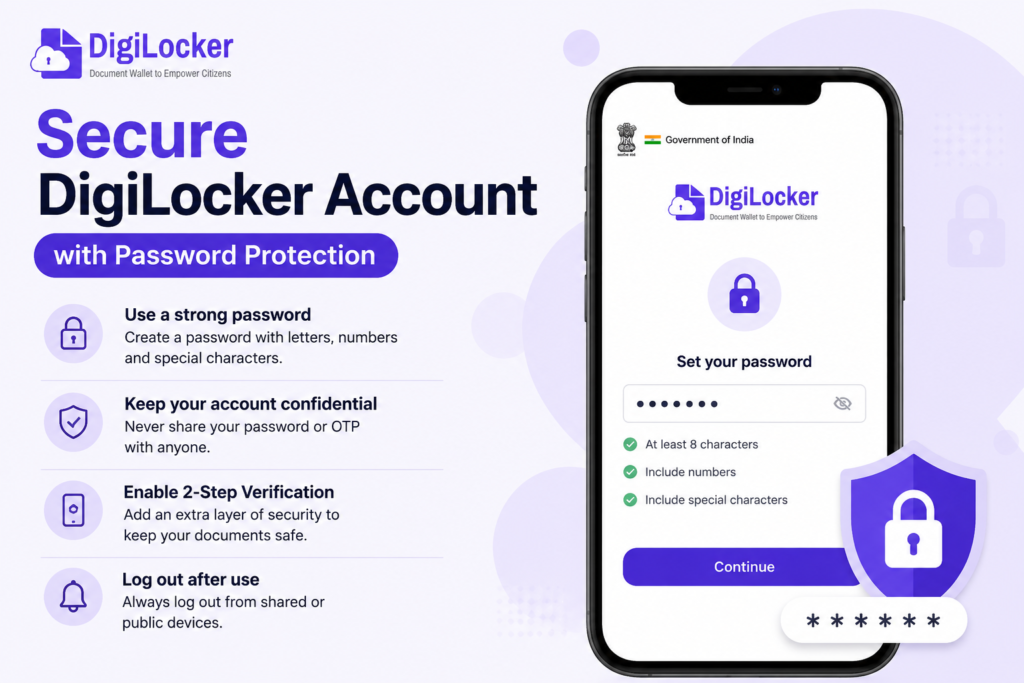
Since DigiLocker contains sensitive documents, follow these safety tips:
- Never share your OTP with anyone.
- Use a strong password.
- Enable phone lock security.
- Log out on shared devices.
- Keep the app updated regularly.
Protecting your account helps keep your documents secure.
Can Downloaded DigiLocker Documents Be Used Officially?
Yes, many DigiLocker documents are officially accepted because they are digitally signed and verified.
They are commonly used for:
- Identity verification
- Vehicle checks
- Educational admissions
- Government applications
- Job documentation
However, some organizations may still request physical copies in specific situations.
Benefits of Using DigiLocker on Mobile
Using DigiLocker on your smartphone offers several advantages:
- Access documents anytime
- No need to carry paper copies
- Easy sharing of certificates
- Secure digital storage
- Faster verification process
This makes DigiLocker a useful app for students, employees, drivers, and citizens alike.
Frequently Asked Questions (FAQs)
1. How do I download DigiLocker documents on mobile?
Open the DigiLocker app, log in, go to Issued Documents, select the document, and tap the download button.
2. Where are DigiLocker files saved on mobile?
They are usually saved in the Downloads folder or Documents folder of your phone.
3. Can I use downloaded DigiLocker PDFs offline?
Yes, once downloaded, you can access them without an internet connection.
4. Are DigiLocker documents legally valid?
Many DigiLocker-issued documents are digitally verified and accepted by government authorities.
5. Why can’t I see my documents in DigiLocker?
The document may not be linked yet, or the issuing authority may not have uploaded it.
Conclusion
Knowing how to download DigiLocker documents on mobile can save time and make document management much easier. With just a few taps, you can access important certificates and IDs directly from your smartphone.
Whether you use Android or iPhone, the process is simple once you know where to find your documents and how to save them. Keep your DigiLocker account secure and regularly check for updated documents so you always have access when needed.
Digital documents are becoming increasingly important, and DigiLocker is one of the easiest ways to manage them safely and conveniently.
Read Also: How to Update Aadhaar Mobile Number Online at Home

Rani Singh is the writer and creator behind VKAdda.in. She enjoys creating simple, beginner-friendly content related to AI tools, tech fixes, and useful online guides. Her goal is to make technology easier to understand with clear explanations, practical solutions, and helpful step-by-step articles for everyday users.